How to create a price offer
Do you need to create a price quote for your clients? You can do it in a few minutes right in our system! See how you can add products from our catalog, as well as atypical elements or furniture from other sellers. It's easy.

How to start creating a quote
To create a new quote, log in to your account in the Profizone section at the top of the page. If you do not have an account yet, register as an architect, wait for the e-mail confirmation and then log in.
Start creating a price quote by selecting goods from our e-shop. Its selection is easy using our filters, that will help you find furniture in required colors or materials. For each product, choose the desired design, number of items and other available components and add it to the cart. You can find more detailed information about the configurator and the selection of goods in this video. After adding the last item, open your shopping cart and select the New offer button above the list of inserted products. Now you can start creating the price quote.
Dealer Information: All products will be displayed at wholesale price upon login.
Add any products
Are you missing a specific item in our catalog? Add it manually by filling out the form below the pending quote. In addition to the name, price and description, you can also upload a product photo. After saving, the manually inserted product will appear under other products. For easier orientation, items can be organized into groups with their own name (for example, groups can indicate room names).

Offer your client a discount
In the price quote, you can also choose a discount that you would like to provide to your client, both on the entire order and on individual products. When you enter the discount, the price will be automatically recalculated. If you want to choose a discount higher than 5%, we recommend that you consult it with the specialists of the Alax team.

Edit your quote at any time
If you are returning to an unfinished quote, first update prices that may have changed since your last log in. For individual items, you can adjust their amount, your individual discount for the client or use the symbols on the left side of the field to change their order. Select Copy to duplicate the product. Use the Edit button to edit the previously selected parameters. Click on the cross in the right corner of the box to delete the product from the menu.
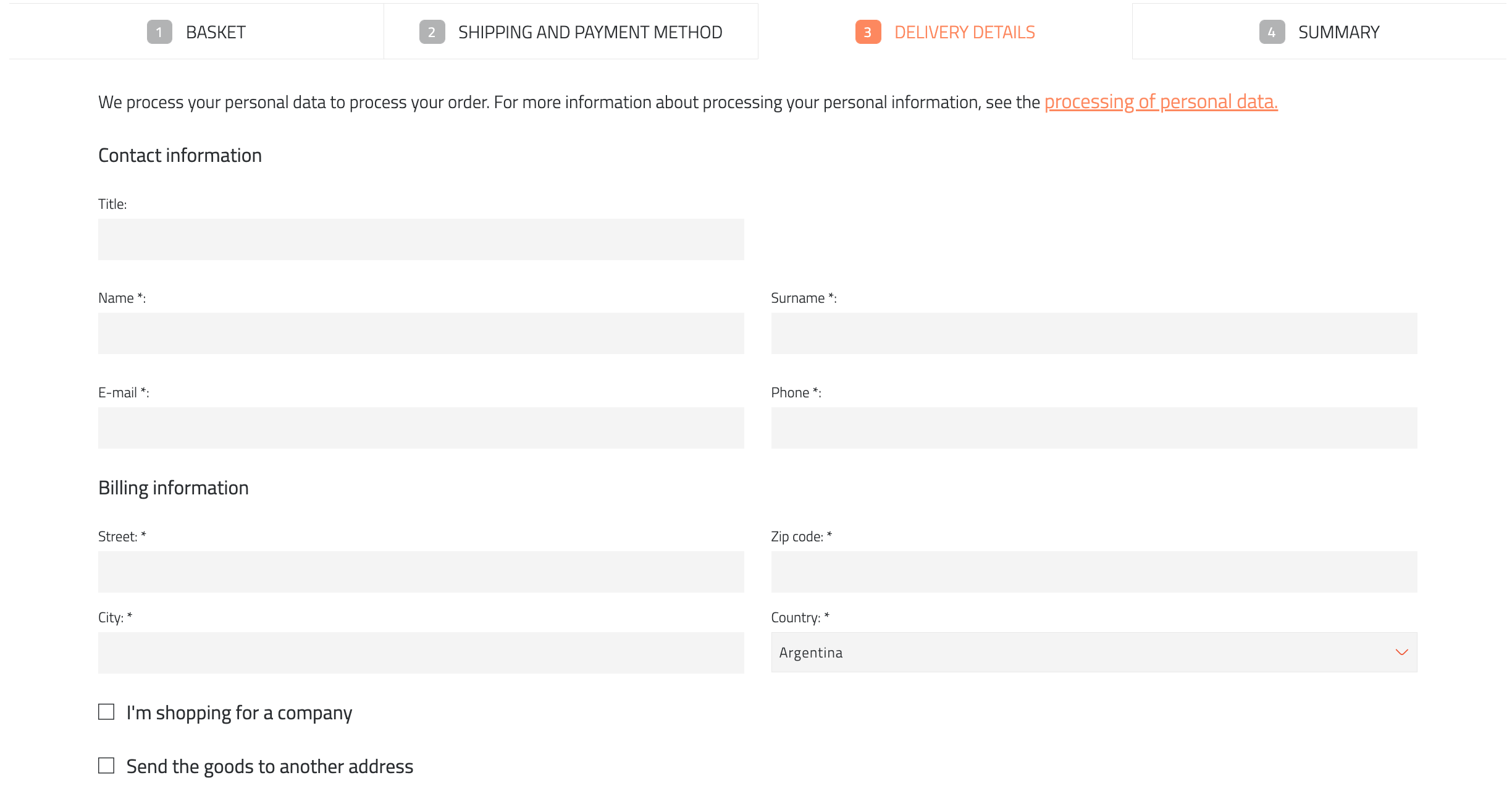
After adding the last item, go to the next step by choosing Continue in the quote, where you select the transport and payment method. You can also enter your own shipping price and delivery date. In the next step, fill in your client's delivery details. If it is a company, select the I am buying a company option and enter the name, ID number and VAT number. If the delivery address differs from the billing address, check Send the goods to another address and fill it in. You can also attach a note to our specialists and then choose Continue again. In the final summary, check the entered data thoroughly and if everything is OK, send the quote by clicking on the Create quote button.

And you're done! Do you want to personalize your quote? Choose Settings and in the Contact details section, upload your logo that will appear on it. You can now print or save the quote in your preferred format and send it to the client. Do you need to include atypical goods or parameters in the quote? Choose the Excel format, which offers more editing options. You can easily return to the finished or pending offer in your account at any time in the Quotes menu. It is always necessary to empty the current shopping cart before starting a new quote.
It is easy!
Everyone can create a price quote. See our short video, in which we show you how to create and send a quote to your client in a few quick steps. If you still do not know your way around, do not hesitate to contact us. Our specialists will be happy to help you.